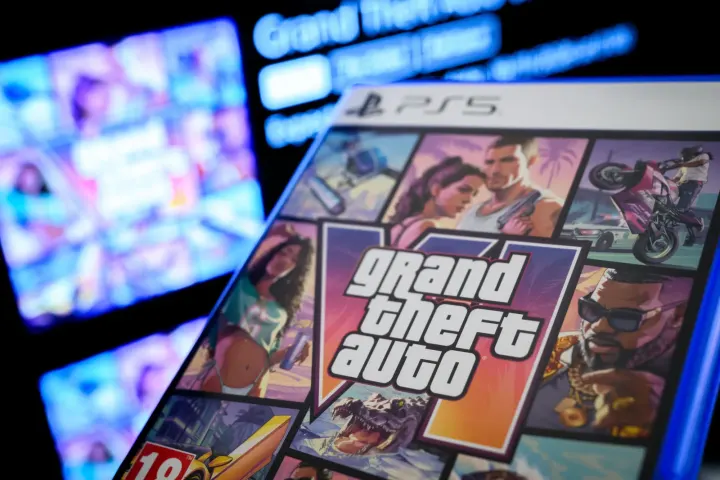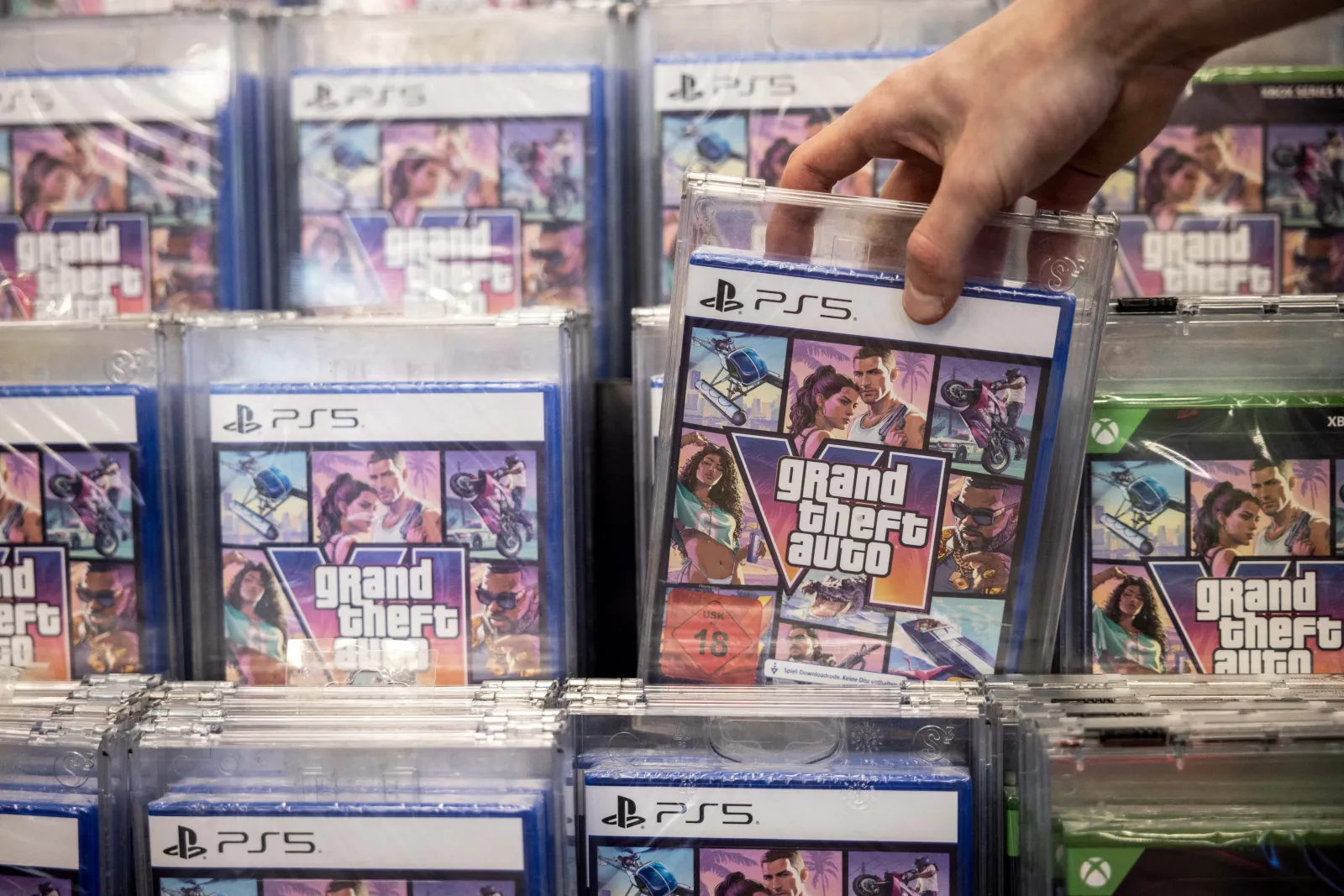
Millions of Rockstar Games fans in the United Kingdom attempted to play Grand Theft Auto VI as soon as it unlocked at 12 am on Thursday, November 19, only to encounter error messages that prevented access.
The most common roadblocks are server overload, pre-loading licence restrictions and forgotten Rockstar account passwords. This article details each problem, explains why it occurs, and provides step-by-step fixes so players can get back into the game quickly.
What caused the "Why can't I play GTA 6?" error on launch day?
Three distinct issues have been reported by UK gamers during the first hours after the November 19 launch:
- Server issues - overwhelming traffic spikes caused temporary downtime or slow responses from Rockstar's online services.
- Pre-load licence problems - a padlock icon on PlayStation 5 or missing profile linkage on Xbox can block installation.
- Forgotten passwords and account recovery - users who cannot sign in to their Rockstar account are locked out of future online features.
How to confirm a server problem and what to do about it
Rockstar Games maintains a public server-status page that displays real-time information about online services, including authentication, matchmaking and download servers. To verify whether a problem is on Rockstar's side, follow these steps:
- Open a web browser and go to the official Rockstar Games status page (link provided on the Rockstar website).
- Check the colour-coded indicators for "Authentication", "Online Services" and "Download". Green means operational; yellow or red indicates an issue.
- If the page shows an outage, the only remedy is to wait until Rockstar resolves the overload. The company typically posts estimated recovery times and updates on social media.
During high-traffic events, Rockstar has historically advised players to stagger their login attempts, avoid refreshing the page repeatedly, and consider playing later in the day when traffic eases.
Why pre-loading can fail and how to fix licence padlocks
Pre-loading Grand Theft Auto VI is intended to reduce the download burden on launch day. The game requires up to 212 GB of free storage space, so many users enable pre-load as soon as it becomes available. However, a padlock icon may appear next to the game on PlayStation 5, indicating a licence verification failure.
The most common reasons for this icon are:
- The console is signed in with a different PlayStation Network account than the one that purchased GTA VI.
- The purchase transaction did not complete successfully, leaving the licence in a pending state.
- Digital rights management (DRM) servers are temporarily unreachable, which can happen alongside the broader server issues described above.
To resolve the padlock issue on a PS5:
- Navigate to Settings → Users and Accounts → Account → Sign-in.
- Ensure you are logged in with the exact account used for the purchase.
- Open the PlayStation Store, go to your transaction history, and confirm that the GTA VI purchase shows as "Completed".
- If the transaction appears as "Pending" or "Failed", retry the purchase or contact PlayStation Support.
- After confirming the correct account and successful transaction, restart the console and attempt to resume the pre-load.
Xbox Series X|S users face a similar verification step. They should confirm they are signed in with the original Xbox Live profile, check the purchase history in the Microsoft Store, and, if needed, visit the Xbox Support page for licence refresh instructions.
What to do if you forget your Rockstar Games password
While the single-player story mode on PS5 and Xbox Series X|S does not require a Rockstar account, future services such as GTA Online and the planned PC release will. Forgetting the password can therefore become a blocker for long-term access.
Rockstar provides a straightforward recovery process:
- Visit the Rockstar Games account recovery page (link provided in the article).
- Enter the email address associated with your Rockstar account.
- Follow the email instructions to reset your password. The email will contain a secure link that expires after 24 hours.
- After resetting, log in to the Rockstar Games website to verify that your account details are correct.
If you no longer have access to the registered email, you must contact Rockstar Support directly, provide proof of purchase (receipt or transaction ID), and request an account verification.
Impact of launch-day errors on UK gamers
These technical hiccups affect a broad cross-section of players:
- Casual gamers who only intended to play the single-player campaign may be delayed by server downtime.
- Hardcore fans eager to join GTA Online on day one could miss early events, rewards and limited-time content.
- Players with limited broadband bandwidth may find the 212 GB download size prohibitive if pre-load fails and they must start the full download later.
- Consumers who purchased the game digitally are especially sensitive to licence verification issues, as there is no physical disc to fall back on.
What to watch for after the initial launch
Rockstar typically releases patches within days of a major launch to address server scaling, DRM glitches and other bugs. Players should monitor the official Rockstar Twitter feed and the status page for announcements about:
- Server capacity upgrades scheduled for the first week.
- Patch notes that may adjust download size or storage requirements.
- Updates to the account-recovery portal, especially if new security measures are introduced.
Until official patches are rolled out, the safest approach is to verify server status, ensure the correct console account is used, and keep password recovery options up to date.
Practical steps for a smooth GTA VI experience
To minimise the chance of encountering errors on launch day, UK players can take these proactive measures:
- Check server status before logging in. If the service shows red or yellow, wait an hour.
- Confirm you are signed in with the purchasing account on PS5 or Xbox before starting the pre-load.
- Verify the purchase appears as "Completed" in your console's transaction history.
- Ensure at least 212 GB of free storage is available and that your hard drive or SSD is formatted correctly for large files.
- Set up a password manager for your Rockstar account to avoid forgetting credentials.
- Keep the Rockstar support email bookmarked for quick access to the recovery link.
By following these guidelines, most players will be able to join the world of Grand Theft Auto VI without prolonged downtime.
For ongoing updates, visit Rockstar Games' official website, follow their social channels, and keep an eye on the server-status dashboard during the first 48 hours after launch.